In July 2026 work started on a test-and-fix loop for a new Peakboard runtime. The loop starts a board in the current production runtime, built with Windows Presentation Foundation (WPF), and in the new web runtime. The goal is a web runtime that shows every board exactly as the production runtime does, pixel-perfect as far as possible and useful. The loop compares the two screenshots and lets Claude Code, the coding agent from Anthropic, judge the difference. If the visual presentation in the web runtime differs, Claude Code fixes the source code of the web runtime and the loop runs again.
Peakboard is software for dashboards on screens in production and logistics. Such a dashboard is called a board. A board consists of controls, for instance texts, buttons and charts. It is built in the Peakboard Designer, and a runtime shows it on a screen. The current runtime in production is a Windows application built with WPF (see the article about the port from the Universal Windows Platform (UWP) to WPF). This WPF runtime is the reference. The new web runtime runs on the Peakboard Hub, the central management server of Peakboard, and is a beta feature of its on-premise version. Every screen only opens a link to the board in its browser. A self-healing loop is a test loop that repairs the code under test on its own and then tests it again.
The loop is internal tooling and not part of the product. There is no model call in its code. Claude Code runs as a process in headless mode. Headless mode means that a program starts Claude Code with the prompt as a command-line argument. Claude Code then works until the task is done and returns the answer to the program. The rest is .NET 8 code that starts processes, takes screenshots, compares pixels, builds and commits.
Two screenshots and a diff image
The main test of the loop is the comparison test. Before the first board, the loop builds the web runtime once. If this build fails, the run stops and no board is tested. Then the loop starts the WPF runtime with the project file, the file that holds the board. It brings the window to the front, so that no other window covers the board. Right after the start, a board often still shows loading states or running animations. So the loop takes a screenshot of the whole monitor every 1.2 seconds. It stops when two screenshots in a row differ in less than 0.2 percent of their pixels. At that point the board no longer changes.
This last screenshot is the reference image. It shows how the board has to look. Then the loop does the same with the web runtime. Its last screenshot is the actual image, and the web runtime also writes a log file.
Now the loop compares the two images pixel by pixel. For each pixel it adds up the differences in the red, green and blue channels. If the sum is above 60, out of a maximum of 765, the pixel counts as different. The loop then creates a third image, the diff image. It is the reference image with every different pixel colored. Red marks content of the WPF runtime that is missing in the web runtime or sits in a different place. Blue marks content in the web runtime that is not in the reference image.
The next three screenshots show one area of a test board with rectangles from the first run. The screenshot below is the reference image from the WPF runtime.
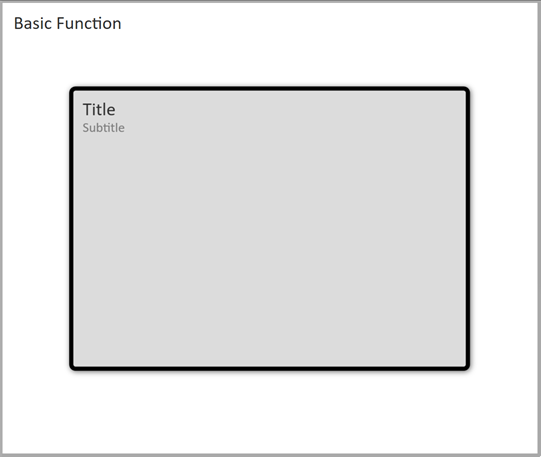
The next screenshot is the actual image from the web runtime. The web runtime drew the shadow around the rectangle much wider than the WPF runtime.
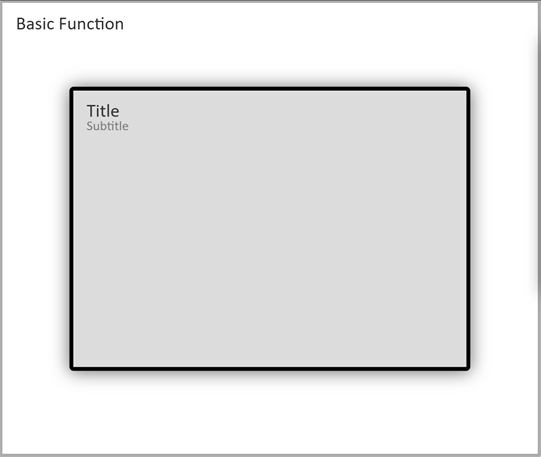
The diff image below shows the extra shadow as a wide blue edge.
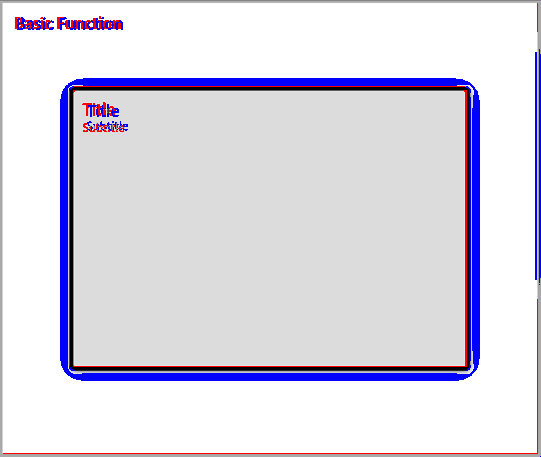
The texts appear twice in the diff image, once in red and once in blue. The web runtime draws them 2 to 4 pixels further to the right and up to one pixel lower, and it smooths the edges of the letters a little differently. Red shows the text of the WPF runtime, and blue shows the text of the web runtime.
The loop also logs how many pixels differ, as a percentage. It does not use this number to decide whether a board passes, because the number of different pixels says little about the cause. Anti-aliasing, the smoothing of edges in text and lines, works a little differently in each runtime. This changes many pixels, but the board still looks right. A chart that is drawn a little differently can have 20,000 different pixels and still be correct. A wrong status color, on the other hand, can cover only 200 pixels and still be a bug. A limit on the percentage would pass the wrong color and fail the correct chart. So Claude Code decides. It looks at the three images and the log and judges whether the difference is a bug.
Claude Code as judge
The prompt is about 45 lines of German text in the code. It names the paths of the three images, the log file and the project file of the board. Claude Code opens them with its built-in Read tool, which also accepts images. The following lines show the main rules of the prompt, shortened and translated:
wpf.png is the screenshot of the WPF runtime, the reference. web.png is the current
screenshot of the web runtime. diff.png marks the differences: RED = content of the
WPF runtime that is missing in the web runtime or sits elsewhere, BLUE = content of
the web runtime that is not in the reference. Only a hint, it will never be pixel-perfect.
web.log is the log of the web runtime. Check it for script and data source errors.
ONLY pure rendering differences are acceptable (anti-aliasing, slightly different font
rendering, an offset of 1 to 2 pixels). Then do NOTHING and end with the line RESULT: OK.
Charts: be more tolerant, but type, values, colors, axes and legend must match.
REAL bugs must ALWAYS be fixed, even on a small area: wrong COLORS (they often show
a state), wrong or missing texts and values, missing elements, a clearly wrong position
or size. The size of the area is NOT a criterion.
You may change EVERYTHING that is needed.
Git protects everything, be bold rather than careful.
If the cause is not specific to this control, fix it at the SHARED place.
You do NOT have to build. The calling tool does that after your answer.
If you changed code, end with the line RESULT: FIXED.
The prompt is long because a short one (“compare and fix”) would allow two mistakes. The model would treat every small rendering difference as a bug and change the code. Or it would let a real bug pass because the area is small. The examples show where a bug begins. Anti-aliasing is not a bug, a wrong status color is. The rule for shared fixes keeps Claude Code from patching one board at a time.
The loop searches the output for the RESULT line. If none is there, it asks again in the same session. If the second answer has no marker either, the loop skips the board.
Fix, build and test again
After a FIXED answer the loop builds the web runtime, takes a new screenshot and compares again. A board gets up to three fix attempts. A build error ends the test of the board. The compiler output goes to the log, not back to Claude Code.
A session is one conversation of Claude Code with its context. The loop keeps the session ID of Claude Code. Every new attempt and every new board continues the same session with the resume flag (--resume). So Claude Code does not read the code base again for every board. The call uses the Claude model Opus 4.8 with the effort level high, which makes the model reason longer before it answers.
After an OK answer and at least one fix, the loop commits the changes. It commits only if a dedicated test branch is checked out, and it never pushes. After every OK answer the loop writes a marker file that marks the board as passed. A rerun by a tester removes it.
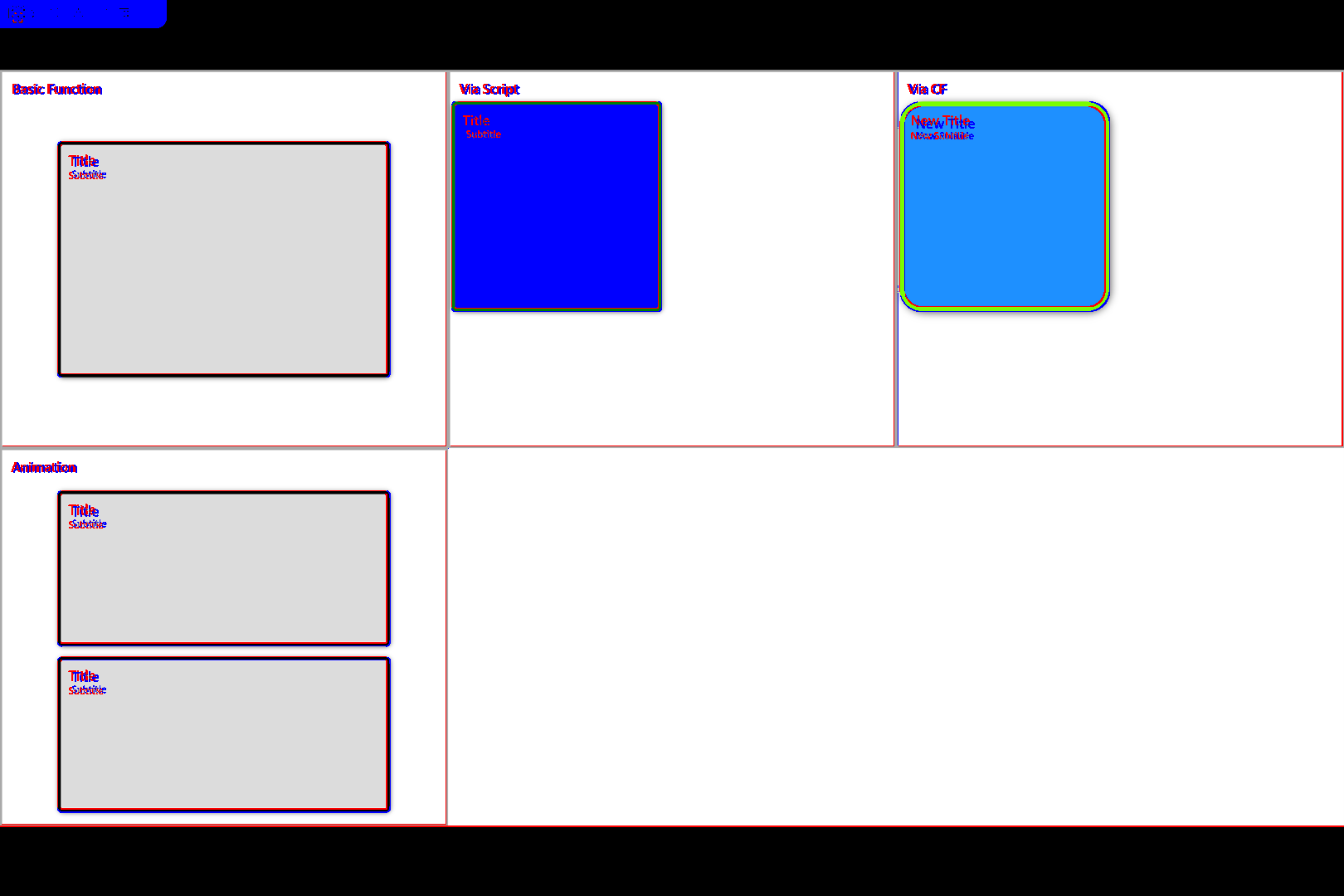
The next screenshot shows the diff image of the whole board after fixes in the web runtime. The shadows now look the same, so the wide blue edges are gone. The texts still appear in red and blue, because they still sit 2 to 4 pixels further to the right in the web runtime. The thin lines at the frames come from anti-aliasing and an offset of one pixel.
Feedback from testers
Testers are the people who also check the web runtime by hand. They start runs from the desktop app of the loop or from a small web page on the test machine. The page also works on a phone in the local network. It shows the results per board with the WPF image and the web image of every run. A tester can add a comment to a board and start it again. The comment goes into the prompt as a note from the tester.
A rerun from the web page can also carry an attachment, for instance a screenshot from a phone. Then there is no screenshot comparison. Claude Code fixes the described problem, the loop builds and commits, and the commit message contains the comment.
Control tests and demo tests
The comparison test only sees the board right after the start, before any input. Two more test types check what happens after a click or an input. A control test checks whether the web runtime reacts at all. A demo test checks whether it reacts in the same way as the WPF runtime.
For a control test, the web runtime starts without a window, and Playwright opens the board in Chromium, the open-source browser behind Google Chrome. Playwright is a library for browser automation. Before each step, the loop runs a short JavaScript function in the page through Playwright. It lists up to 60 visible HTML elements that can be clicked or filled, such as buttons and text boxes. Each entry has its text and its center point on the screen.
Claude Code gets this numbered list and the latest screenshot. It picks one element and answers with one line in JavaScript Object Notation (JSON). The line holds the number of the element and, for a text box, the text to type. Playwright clicks the center point or types the text and takes the next screenshot. Each step is a new call of Claude Code without a session. The screenshots of the run are the only context.
After at most 6 steps, or when Claude Code says it is done, it looks at all screenshots and the log. There is no reference image here, so Claude Code judges whether the board reacts in a sensible way. It checks whether clicks and input have a visible effect and whether the screenshots show broken areas or the log shows errors. The answer ends with RESULT: OK or RESULT: PROBLEM. A control test reports problems but fixes nothing.
A demo test uses a demo board, a board that operates itself. It runs once in the WPF runtime and once in the web runtime. After 6 seconds, a timer in the board starts a script in Lua, the scripting language of Peakboard. Every 4 seconds the script runs one step. A step sends a request over the Hypertext Transfer Protocol (HTTP) to a small control server on the test machine. The request asks for a click, a text input or a screenshot. The server moves the real mouse with the Windows function SendInput and takes the screenshots. So both runtimes get the same input at the same point of the demo.
Every screenshot step gives a pair of reference and actual image plus a diff image, as in the comparison test. Claude Code gets all pairs with the same rules and one more bug type. The new bug type is a click or an input that the WPF runtime answers and the web runtime ignores. Unlike the control test, the demo test fixes the web runtime. It gets up to five fix attempts. After each fix the loop builds the web runtime and plays the demo again.
The loop is separate from the agentic test system for the user interface of the Peakboard Designer. That system lets the model explore the application with the tools of a Model Context Protocol (MCP) server and keep notes. This loop gives the model finished images and a narrow task, and the model changes the product code.
That’s it.
If you have questions feel free to contact me.
Links:
Peakboard →
Claude Code, run programmatically →
Playwright for .NET →
SendInput function →